
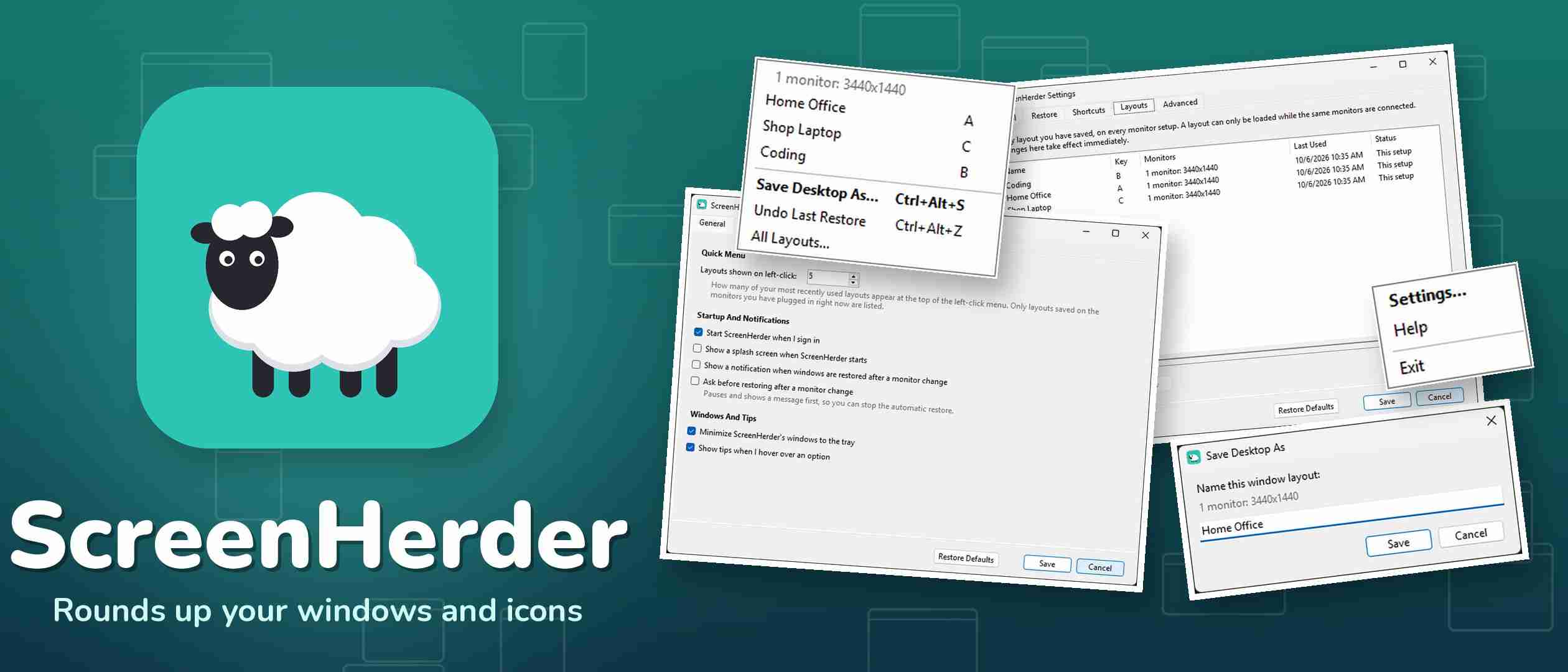
ScreenHerder: I Got Tired of Herding My Windows, So I Built a Sheep to Do It
Every single time I plug my laptop into a different set of monitors, Windows grabs every window I have open, shoves them all onto one screen in a pile, and walks away whistling. Then it scrambles my desktop icons too, just for spite.
Windows has supported multiple monitors since Windows 98. That’s the Clinton administration. And in all the years since, it still can’t remember where you put anything!
I bounce between a desk at the shop, a desk at home, and a couple of other setups during a normal week. That’s a lot of dragging windows around like a dog herding cats. So I fixed it.
What ScreenHerder Does
ScreenHerder is a free little Windows app that lives in your system tray as a sheep. When your monitors change, it puts every window back on the screen it came from, at the size it was, and it puts every desktop icon back exactly where you left it. Icons you deleted since then leave an empty spot. Icons you added stay where they are. It remembers a separate arrangement for every combination of monitors it sees, so the shop desk and the home desk each get their own.
You don’t have to do anything. Plug in, unplug, dock, undock. The sheep handles it.
Download It
Download ScreenHerder here, then click the ScreenHerder-Setup file under Assets and run it. It works on Windows 10 and 11.
Windows might tell you it “protected your PC.” It didn’t. It just doesn’t recognize me, because I didn’t pay for a code-signing certificate for a little pet project. Click More info, then Run anyway. Then click Yes when Windows asks for permission, which lets the installer start ScreenHerder automatically when you sign in.
Find The Sheep
Once it’s installed, ScreenHerder runs quietly down by the clock. That’s the whole app. No window, no dashboard, no nagging.

If you don’t see it, click the little up arrow next to the clock, where Windows hides tray icons it thinks you won’t miss.
Left-Click: Your Layouts
The automatic part handles monitor changes. Layouts are for when you want to flip between arrangements on the same screens. Maybe you’ve got a “Coding” setup and a “Spreadsheets Of Sadness” setup. Left-click the sheep and you get this:
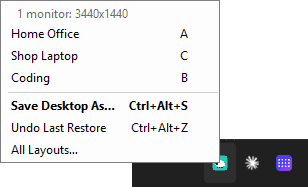
- The top line tells you which monitor setup you’re on.
- Your recent layouts for those monitors come next, five by default. Click one and every window and icon snaps back to how it was when you saved it.
- Save Desktop As saves what’s on your screen right now under a name you pick.
- Undo Last Restore puts things back the way they were before you loaded a layout, for when you clicked the wrong one.
- All Layouts shows every layout you’ve ever saved, on every monitor setup.
Each layout gets a letter. While the menu is open, just press the letter to load it. Hold Shift and press a letter to save into that slot. And Ctrl+Alt+L pops the menu open from anywhere, so you never have to touch the mouse.
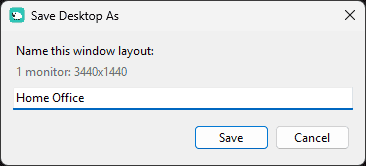
Saving a layout is exactly as hard as it should be. Name it, hit Save, done:
Right-Click: Settings
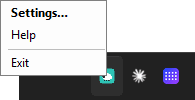
Right-click the sheep for Settings, Help, and Exit.
The defaults are fine for almost everybody, but if you like to tinker, there’s plenty to tinker with. And you don’t need a manual: rest your mouse on any option for three seconds and a tip pops up explaining what it does. Once you know your way around, you can turn the tips off.
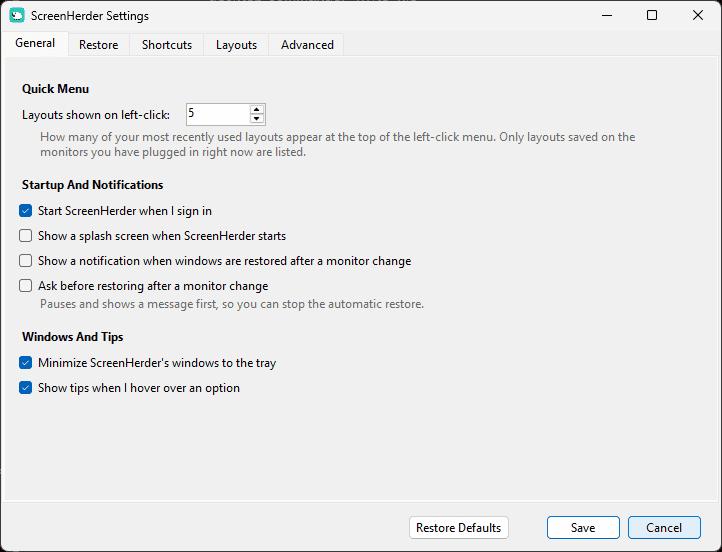
General is where you decide whether ScreenHerder starts when you sign in, whether it notifies you when it restores things, and how many layouts show up in the quick menu.
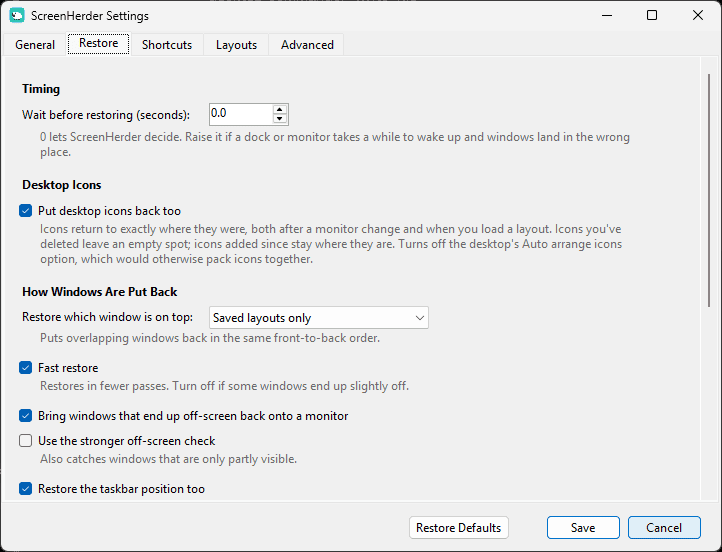
Restore controls how windows and icons go back. If your dock is slow to wake up and windows land on the wrong screen, bump the wait time up to three or four seconds.
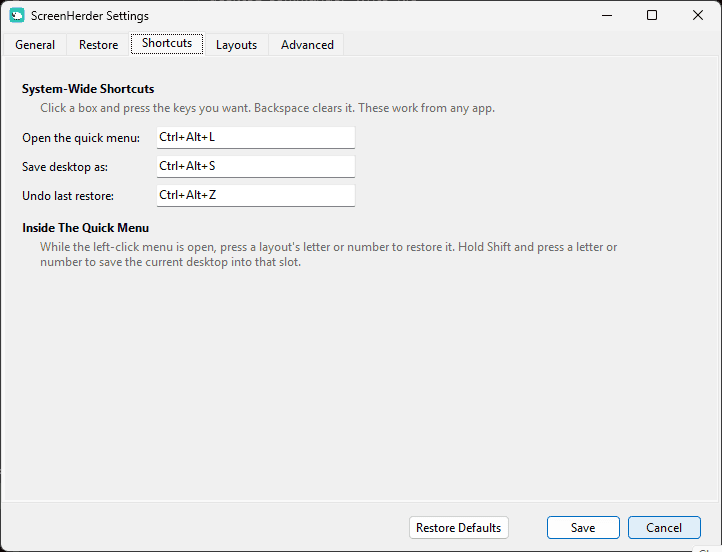
Shortcuts lets you set keyboard shortcuts that work from any app: one to open the quick menu, one to save, and one to undo.
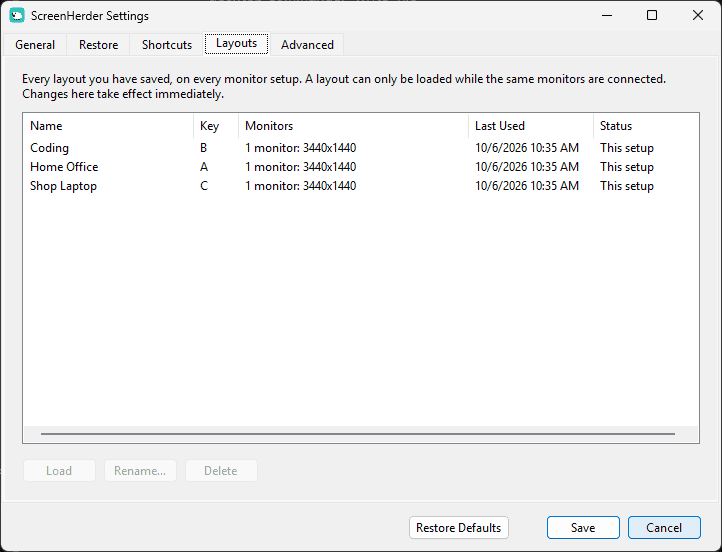
Layouts lists everything you’ve saved. Layouts from other monitor setups show up grayed out, because putting your three-monitor arrangement onto a single laptop screen isn’t restoring anything, it’s just making a mess.
There’s also an Advanced tab, for things like telling ScreenHerder to leave certain apps alone. Most people will never open it, which is exactly why it’s called Advanced.
Credit Where It’s Due
ScreenHerder includes the window-tracking engine from PersistentWindows by Kang Yu and contributors, which is a great piece of work buried under a setup process only a programmer could love. On top of it I added the desktop icons, named layouts, the menus and settings, and a real installer. It’s free and open source under the GPL, and the code is on GitHub if you want to poke at it.
Now go plug in a monitor and watch the sheep do its job. If it screws something up, tell me in the comments, and tell me exactly what you plugged in, because “it doesn’t work” isn’t a bug report. It’s a mood.
One email per post. Twenty years of this, still going. Unsubscribe whenever.

